Day - 19 Task : Docker for DevOps Engineers
Docker Volume :
Docker volumes are a way to persistently store and manage data used by Docker containers. They provide a mechanism for sharing and storing data between containers and between the host machine and containers while ensuring data persists even if containers are removed or stopped.
Docker Network :
Docker allows you to create virtual spaces called networks, where you can connect multiple containers (small packages that hold all the necessary files for a specific application to run) together. This way, the containers can communicate with each other and with the host machine (the computer on which the Docker is installed). When we run a container, it has its own storage space that is only accessible by that specific container. If we want to share that storage space with other containers, we can't do that.
Task-1 :
- Create a multi-container docker-compose file which will bring UP and bring DOWN containers in a single shot ( Example - Create application and database container )
We have a docker-compose yml file from our previous articles
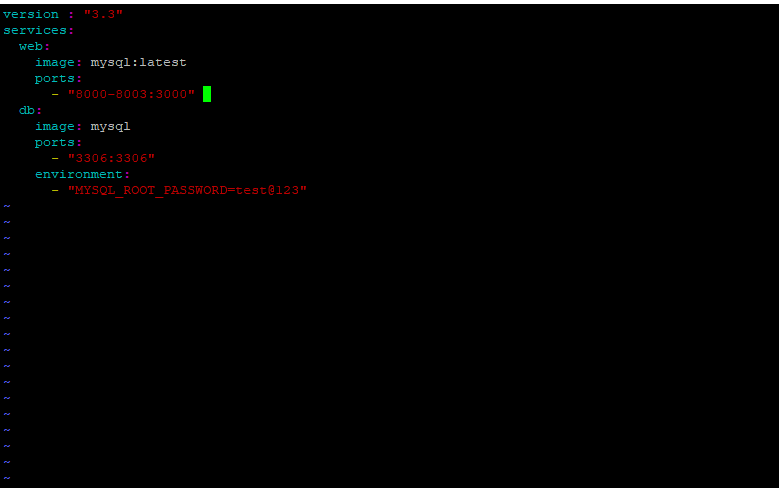
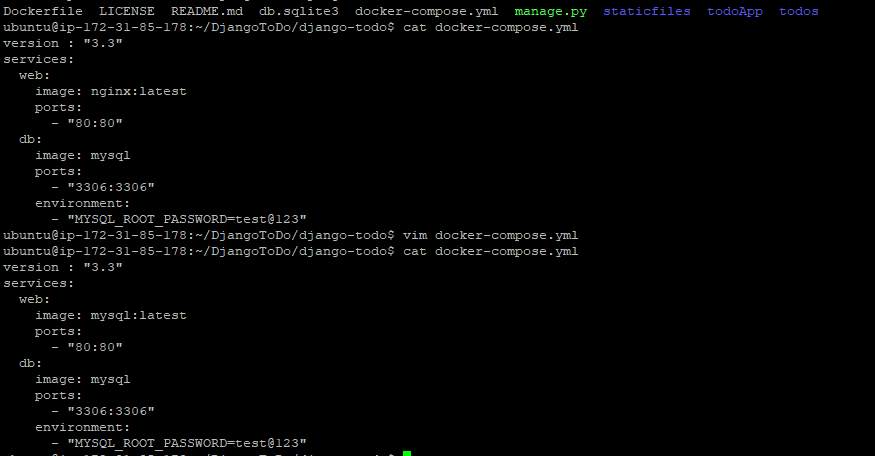
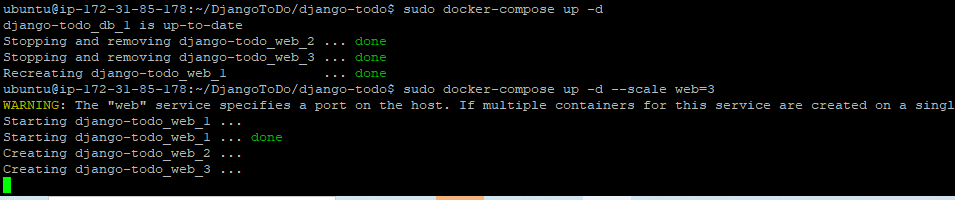
Use the docker-compose up command with the -d flag to start a multi-container application in detached mode

Use the docker-compose scale command to increase or decrease the number of replicas for a specific service. You can also add replicas in deployment file for auto-scaling.
Use the docker-compose down command to stop and remove all containers, networks, and volumes associated with the application
command is : sudo docker-compose down
Task-2
Learn how to use Docker Volumes and Named Volumes to share files and directories between multiple containers.
docker volume create --name volume-data
run our container:
docker run -d -v volume-data:/data --name nginx-test nginx:latest
Create two or more containers that read and write data to the same volume using the docker run --mount command.
docker volume create --name first-volume-data && docker volume create --name second-volume-data
Suppose we want to mount two different volumes for our web application, but one of those paths must be read-only.
If we are using the command line, we can use the -v option:
docker run -d -p 8080:8080 -v first-volume-data:/container-path-1 -v second-volume-data:/container-path-2:ro --name web-app web-app:latest
Use the docker volume ls command to list all volumes
command : docker volume ls
Use the docker volume rm command to remove the volume when you're done
command : docker volumne rm "volume name"